This guide breaks down the five best free photo cropping apps you can use for image editing.
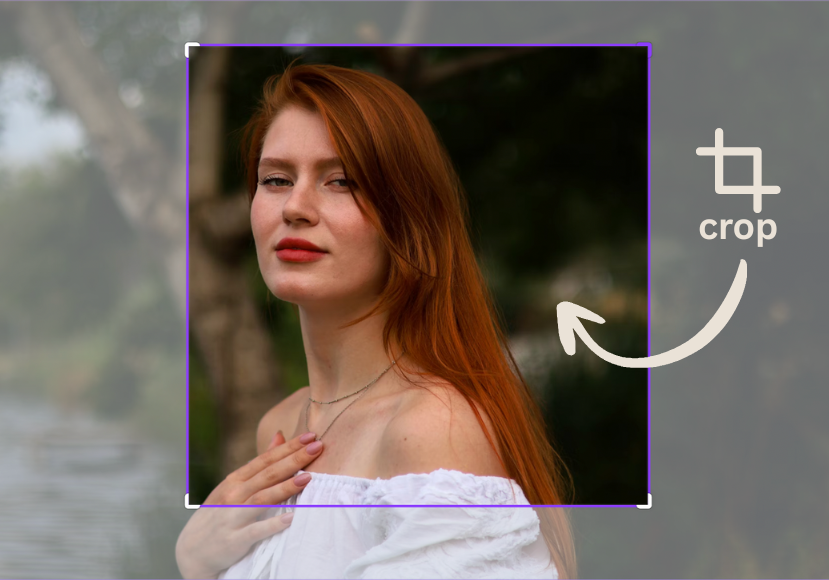
Cropping is a core process for photographers and content creators when refining their compositions and removing unwanted elements.
With the advent of new AI features, crop tools have become increasingly sophisticated, elevating the basic concept with a range of additional refinements.
You don’t have to pay for professional image editing software to access robust cropping tools; several programs are available for free.
Read on for a complete guide to the best free photo cropping apps for making precision edits to your images.
What Are the Best Free Photo Cropping Apps in 2025?
Hobbyist and professional photographers alike are intimately familiar with the crop tool when fine-tuning their compositions.
Today’s photo editing apps enable in-depth adjustments during cropping, including aspect ratio adjustments and AI object removal.
Many cropping tools included in pro-level editing software have migrated to free-to-use image editing apps for desktop and smartphone devices.
Here’s an overview of the best free photo cropping apps available for basic and advanced image cropping, perfect for your high-quality images.
Canva (Best Overall)

- Easy to use and intuitive UI
- Smart Crop feature for instant adjustments
- Unique custom crop designs using the Frames tool
- Plenty of aspect ratio options
- Smart Crop can be unreliable with some images
- A Canva Pro subscription is required for all features
Canva has long been a stalwart in the content creation and marketing world, thanks to its accessible web-based platform and comprehensive toolset.
It includes several cropping tools, starting with basic manual cropping that offers precise control and aspect ratios for social media platforms.
Canva has a handy “frames” system that can be used to create irregularly shaped crops and custom designs.
Select Frames from the Elements tab in the software, and choose a shape before dragging your image onto it.
(Here‘s a complete tutorial on how to use frames in Canva.)
It’s a fun tool to use, especially when creating designs for birthday cards and marketing materials.
Used in conjunction with other Canva tools, such as resize and Magic Edit, it allows for an impressive degree of compositional editing.
For those with little to no experience editing images, Canva also features an AI-powered smart crop, providing a time-saving process.
This tool can be used to quickly identify the optimal composition based on analysis of the image’s properties and content.
While some manual adjustments may be necessary to fine-tune the results, in general, it’s an effective tool that enhances image framing.
Canva’s free version is available online, as well as for iPhone and Android devices, while the Canva Pro subscription unlocks the equally useful Background Remover tool.
Picsart (Best for Custom Cropping)

- Beginner-friendly image editing app
- Precise freeform cropping features
- Cutout tool for AI background removal
- Batch cropping for a streamlined workflow
- The batch cropping feature can be slow
- Picsart Gold subscription required for AI tools
Picsart might lack the recognizability of platforms like Canva and Adobe Express, but it’s among the most versatile apps for cropping images.
The app features extensive cropping options, including custom settings that allow you to create playful and unique looks in just a few steps.
Custom shapes for crops are plentiful, while the freeform cropping tool allows for the quick selection of bespoke parameters.
By manually brushing the desired area, Picsart can be used to create transparent cutouts, whether you’re removing unwanted elements or making creative collages.
While some apps cannot batch-process images based on templated or custom crop settings, Picsart offers this feature.
Bear in mind, the feature is limited to a maximum of 50 images, and web version processing can be slow depending on image file sizes.
With additional AI tools for removing backgrounds that complement these crop features, Picsart is highly recommended for customizing processes.
Adobe Express (Best One-And-Done)

- Precise and high-quality results
- Extensive image format support
- Instant results with AI-powered features
- Seamless workflow for social media content creation
- Limitations on shape adjustments
- Background removal can be imprecise
If you’re not already using Adobe’s Creative Cloud for Photoshop or Lightroom, Adobe Express is a popular alternative for online and mobile use.
Editing and cropping images in Adobe Express is straightforward, with the Crop & Shape tool presenting a range of options.
Manual cropping is intuitive without compromising precision, with various shape options, including circles, stars, hearts, and more.
There’s also a quick-action background-removal tool that isolates the main subject before making the surrounding area transparent.
As you’d expect from Adobe, processing is rapid and accurate, and there’s even a comparable trim tool for linear video cropping.
There are also more advanced AI tools available, including Generative Fill, a Photoshop feature now accessible in Express.
Collart AI (Best for Freehand Cropping)

- Intuitive and accessible user interface
- Accurate manual cutout scissor tool
- Nice selection of shape cutout templates
- Fits into an impressive larger ecosystem of tools
- Subscription model for advanced features
- Free version features excessive ads
If the lack of nuanced shape editing in Adobe Express is restricting your creative options, Collart AI may be the solution you’re looking for.
This app provides users with a robust method for cropping images into non-traditional shapes, complemented by the templates available in Adobe Express.
You can select from hearts, stars, and other cutout templates or create the outline freely using the app’s Scissors Cutout tool.
It delivers accurate results, whether you trace the shape with a finger or use an Apple Pencil, depending on your device.
Original image resolution is maintained, and it can be applied in conjunction with the AI background removal tool for a streamlined workflow.
Collart AI also features the ubiquitous standard or freestyle crop tool, along with several presets for Instagram, YouTube, and other platforms.
While the platform might lack the broader range of editing tools compared to alternatives, its freehand crop tools are second to none.
Lightroom Photo & Video Editor (Best for RAW files)

- Powerful non-destructive cropping tools
- Impressive straightening and rotation tools
- RAW image compatibility
- Various composition overlays
- Batch processing isn’t efficient
- Lacking custom shape and freeform options
Accessing Adobe’s suite of image cropping tools doesn’t require a subscription to Lightroom or Photoshop.
A variety of cropping tasks can be accomplished with the free version of Adobe Lightroom Photo & Video Editor, with applications for RAW files.
There’s a range of basic cropping options, such as the freeform crop, which allows for manual adjustments to the frame and composition.
The software also employs a non-destructive editing approach, enabling users to revert to the original photo without compromising the data.
Lightroom’s aspect ratio presets are included here, whether cropping for prints or social media accounts.
There are also options for customized aspect ratios, saving time while delivering consistently accurate results.
Straighten and rotation tools are also integrated into the free version of Adobe Lightroom Photo & Video Editor to add further nuance to images.
You can also apply composition overlays, such as Golden Ratio and Spiral, or the photographer’s favorite, the Rule of Thirds.
As you’d expect from Adobe, everything here impresses, from the neat user interface to the quality of editing the tools deliver.
GIMP (Best Desktop App for Advanced Users)

- An extensive range of advanced crop tools
- Impressive selection of aspect ratios
- Lots of shape templates to choose from
- Non-destructive cropping
- Automatic cropping struggles with complex images
- Steep learning curve to master
GIMP has been a firm favorite among graphic designers and photographers for many years, a free, open-source alternative to Photoshop.
This extensive development time has enabled the integration of a stunning range of features, including advanced image cropping tools.
While the platform’s complexity gives it a steeper learning curve, the result is a highly refined selection of tools for complex extractions.
In addition to the standard rectangular crop tool, GIMP offers automated content cropping, custom shapes, and intelligent scissors.
We have a step-by-step guide to using GIMP’s cropping tools here.
Each of these tools can be used for highly creative results, particularly when combined with GIMP’s Foreground Select feature.
This allows users to roughly outline any object, then paint over it to create a detailed selection of its foreground pixels.
It’s a feature that most alternatives lack, and can be a significant time-saving tool when working with complex images and subjects.
FAQs About Free Photo Cropping Apps & Software
What is the best photo app to crop an image freely?
When it comes to cropping images for free, numerous options are available, ranging from Google Snapseed and Canva to Adobe Express and Picsart.
Each of these tools utilizes intuitive features to make precise adjustments to your compositions, whether you’re using an Android or iOS device or a desktop computer.
Alternatively, most smartphones come with free cropping tools within their default image apps, which is ideal for quick adjustments.
How do you crop someone out of a picture for free with an app?
The aforementioned Picsart, Canva, and Snapseed all include powerful object and subject removal tools for removing people from photographs.
On Snapseed, you can use the Healing tool to remove a person, while Picsart’s Remove Object feature uses AI to recreate the background.
Likewise, Canva’s Magic Eraser tool works similarly, featuring an adjustable brush for precise selection of a person.
Is there a way to freehand crop an image online?
Adobe Express and Pixlr both feature freehand options for cropping images with irregular shapes using a mouse, stylus, or finger strokes.
MockoFUN is another easy-to-use tool that incorporates an AI-powered crop feature, ideal for cropping irregular shapes.
Which free photo cropping tools offer pre-made templates for social media?
If you’re posting images on social media, pre-made templates can save time when editing them for Instagram, TikTok, and other platforms.
Adobe Express and Picsart both offer templates for multiple social media platforms, along with easy-to-use tools for creating professional-looking designs.
You can also consider using Canva and Pixlr, with VistaCreate and Snappa apps offering templates for both social media and print designs.